

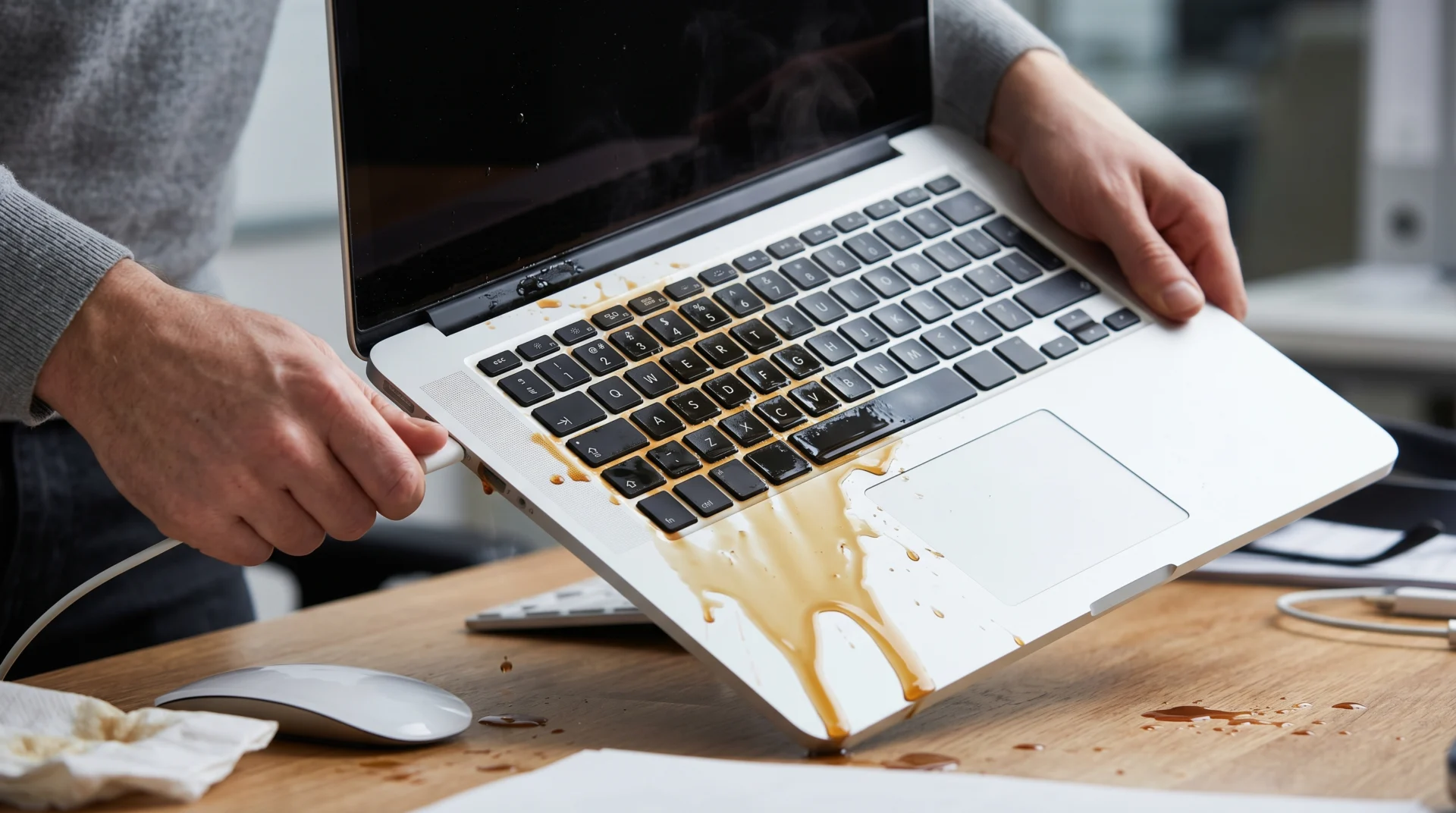
STOP. Do not try to finish that email or save your work. What you do in the next 60 seconds determines whether your laptop survives or becomes an expensive paperweight. If you are reading this right now because of a fresh spill, follow the steps below immediately.
🚨 Phase 1: The 60-Second Emergency First Aid
- Force Shutdown: Ignore the “Shutting down…” screen. Hold the power button for 5–10 seconds until the screen goes black. You must cut the power before a short circuit occurs.
- Unplug Everything: Pull out the charger, mouse, USB drives, and any external cables. If your laptop has a removable battery, pop it out immediately.
- The “Tent” Position: Open your laptop and flip it upside down like a tent. This stops the liquid from traveling deeper toward the logic board.
- Wipe Visible Liquid: Use a lint-free cloth or paper towel to soak up any liquid on the surface. Do not wipe across the keys; dab gently to avoid pushing liquid underneath.
Phase 2: Why These Steps Save Your Motherboard
It is a common misconception that liquid “breaks” electronics on contact. In reality, it is the combination of electricity and liquid that causes the damage.
When a conductive liquid (like water or coffee) bridges two points on a circuit board that shouldn’t be connected, it creates a short circuit. This can fry critical components like the CPU or GPU instantly. By forcing a shutdown and removing the battery, you remove the “fuel” (electricity) from the equation, giving your hardware a fighting chance.
Gravity is your second best friend. Most modern laptops have “drainage” designs in the keyboard, but they only work if you flip the device over before the liquid seeps through the secondary layers.
Phase 3: The “Rice Myth” and Why It Fails
You have likely heard the advice to put your laptop in a bag of rice. Do not do this.
While rice is a desiccant, it cannot pull moisture out of the tight crevices of a laptop motherboard. Worse, rice releases starch and fine dust that, when mixed with liquid, creates a sticky paste inside your ports and cooling fans. This paste can trap heat and actually accelerate the very damage you are trying to prevent.
Instead of rice, leave the laptop in the “tent” position in a room with good airflow or near a dehumidifier. But remember: even if it looks dry, the danger isn’t over.
Phase 4: The “Slow Death” – Understanding Corrosion
This is the most critical part of the process. You might wait 48 hours, turn the laptop on, and find that it works perfectly. You think you’re in the clear. You aren’t.
When liquid evaporates, it leaves behind minerals, salts, and sugars. These residues act as magnets for moisture in the air. This triggers corrosion (oxidation), which slowly “eats” through the copper circuits on your motherboard over the course of days or weeks.
Sugary vs. Plain Liquids
- Water: Least damaging, but still causes oxidation if not cleaned professionally.
- Black Coffee/Tea: Acidic, which accelerates metal erosion.
- Milk/Juice/Soda: The most dangerous. The sugars and proteins create a conductive “crust” that is nearly impossible to remove without professional chemicals.
Phase 5: Professional Internal Cleaning & Recovery
To truly save a laptop after a spill, the device needs a professional internal deep clean. This isn’t something you can do with a vacuum cleaner. At a professional repair center, the process involves:
- Complete Teardown: Every component is removed to inspect the logic board under a microscope for signs of early corrosion.
- Ultrasonic Cleaning: The motherboard is placed in a specialized bath with 99% Isopropyl Alcohol or specific cleaning agents that vibrate at high frequencies to “shake” the residue off from under the chips.
- Circuit Analysis: Technicians test the “power rails” to ensure no components were weakened by a minor short circuit.
Phase 6: Why Bangalore Professionals Trust MSR Technologies
Living in a high-humidity tech hub like Bangalore means your laptop is already fighting environmental stress. When a spill happens, the local humidity can cause corrosion to set in much faster than in drier climates.
At MSR Technologies, we specialize in liquid damage recovery for MacBooks and high-end Windows laptops. We don’t just “dry it out”—we perform chip-level diagnostics to ensure your data and hardware are safe for the long term.
If you are in Marathahalli, Whitefield, or Bellandur, don’t wait for the “slow death” to claim your machine. A professional assessment today is significantly cheaper than a motherboard replacement tomorrow.
Bring your laptop in for a professional rescue:
Website: msrtechnologies.org
Location: Shop No. 6, 1st Floor, Near Union Bank, Outer Ring Road, Marathahalli.
Emergency Helpline: +91 99641 98735